Evidence
Path: /evidence
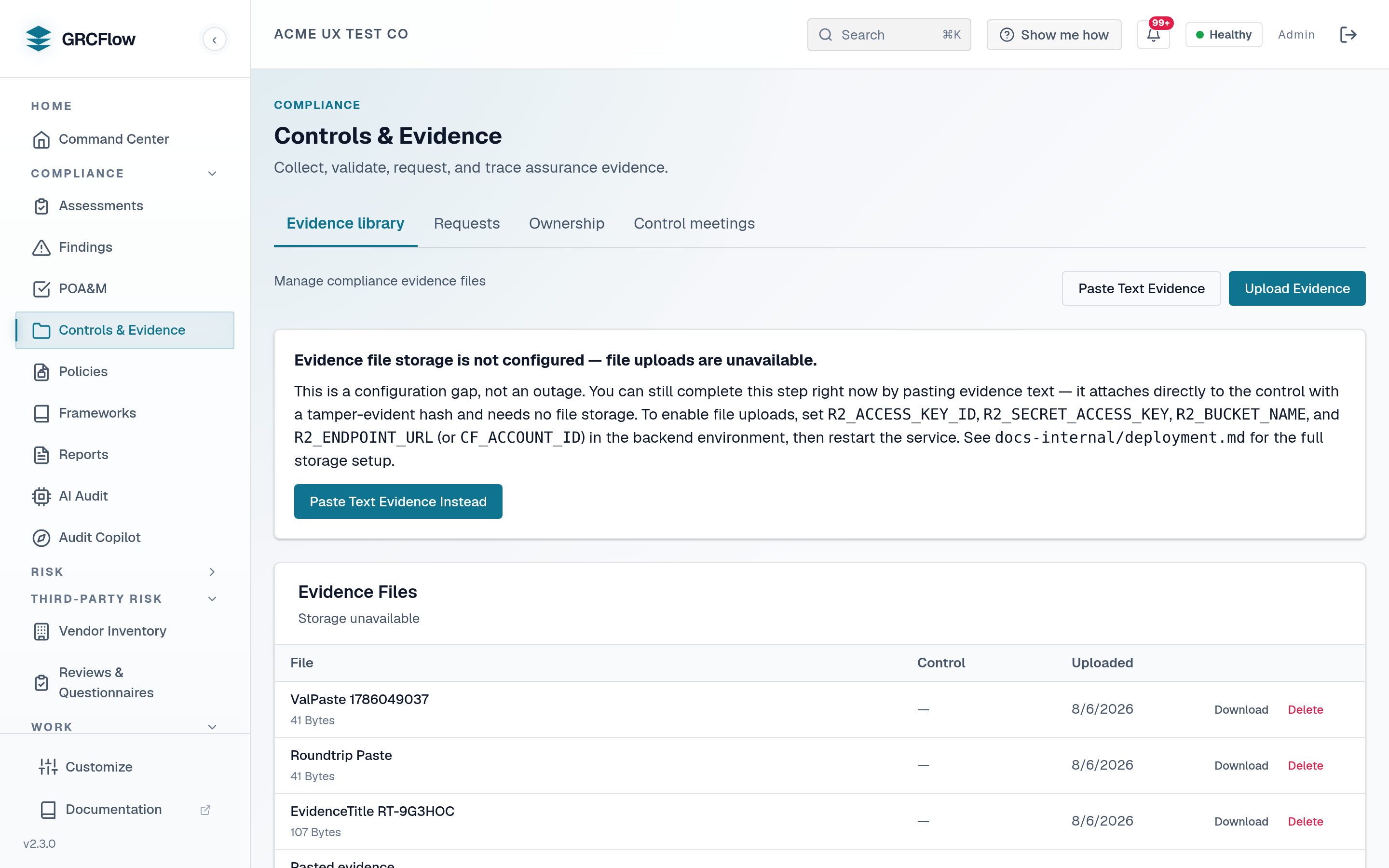
The evidence repository stores documents, screenshots, and files that prove your controls are working. Evidence is stored in S3-compatible object storage (Cloudflare R2, AWS S3, or a self-hosted MinIO).
Prerequisites - object storage required
Evidence upload and download are not turnkey out of the box. They need an S3-compatible object store that you supply. A stock install ships with object storage unset, so the demo's all-green evidence repository reflects its pre-wired storage, not a default install.
To enable, configure one of:
- Cloudflare R2 / AWS S3 / any S3-compatible endpoint - set
R2_ENDPOINT_URL(orCF_ACCOUNT_ID),R2_ACCESS_KEY_ID, andR2_SECRET_ACCESS_KEY(plus the bucket), or - The bundled MinIO sidecar - enable the optional
minioservice in the Compose stack and point the same storage settings at it.
Without object storage configured, every upload, download, and listing call returns HTTP 503 - "Evidence storage service is unavailable"; the rest of the platform keeps working. The in-app Setup readiness checklist on the Dashboard flags Evidence Storage as Needs setup with the key to set. See Admin Settings to configure.
Key Elements
- Upload button - Upload new evidence files (PDFs, screenshots, config exports).
- Evidence list - Shows filename, type, upload date, linked controls, and verification status.
- Verification - Evidence can be cryptographically verified using SHA-256 hashes.
How to Upload Evidence
- Click Upload.
- Select files from your computer (up to 100MB per file).
- Tag the evidence with the relevant control IDs.
- Add a description explaining what this evidence proves.
Note
Evidence storage requires S3-compatible object storage (R2/S3 or the MinIO sidecar) - see the prerequisites callout at the top of this page. Until it is configured, these upload/download actions return HTTP 503.
Evidence storage
Evidence storage uses S3-compatible object storage (Cloudflare R2, AWS S3, or the bundled MinIO sidecar), configured as described in the prerequisites note at the top of this page. See Admin Settings to set it up.