Settings
Path: /settings
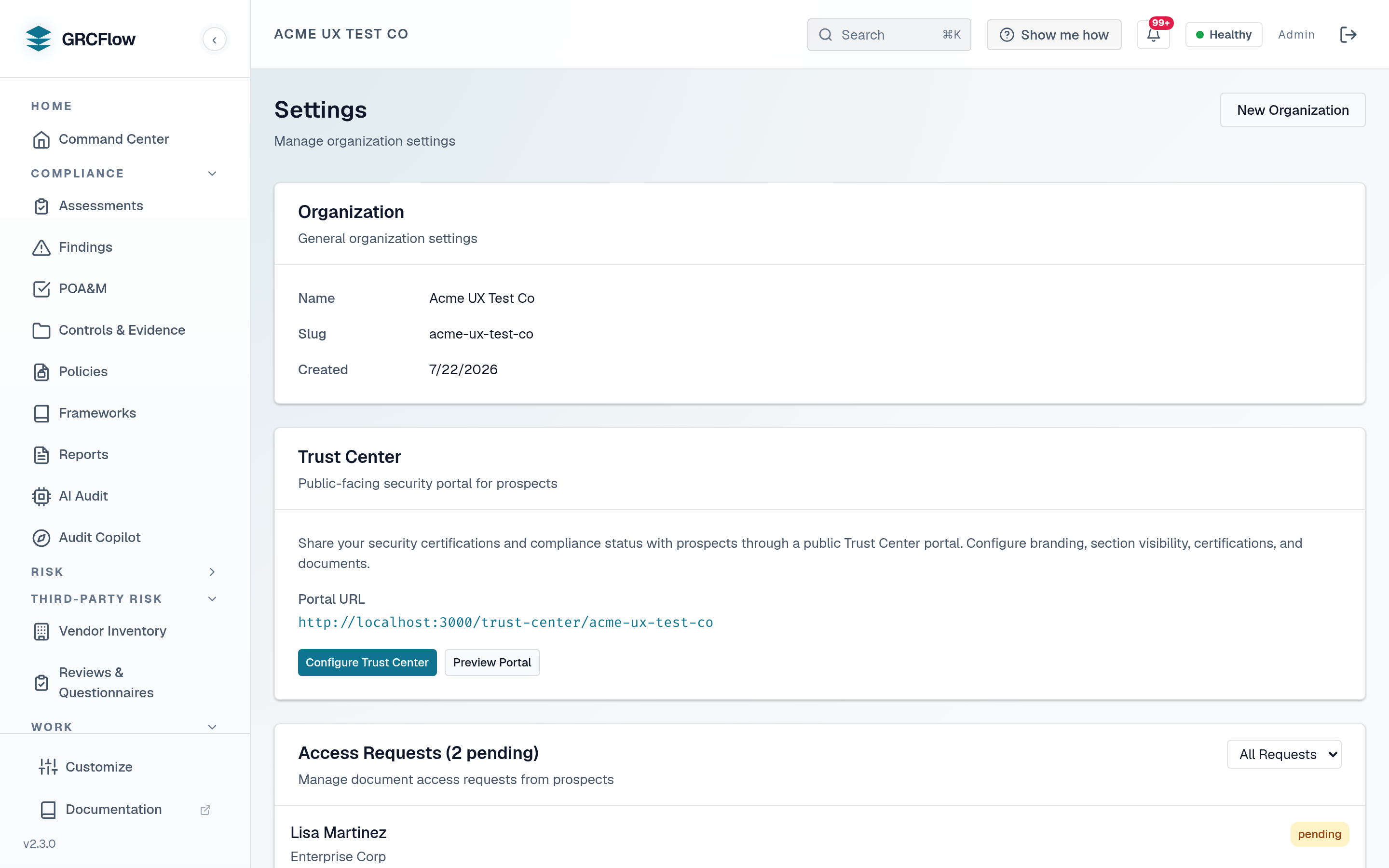
Organization settings, Trust Center configuration, and access request management.
Sections
- Organization - View and edit org name, slug, and creation date. Click New Organization to create additional organizations.
- Trust Center - Configure the public-facing security portal. Set branding, visibility, and portal URL. Click Configure Trust Center to customize.
- Access Requests - Manage document access requests from prospects who visited your Trust Center.
Users & Roles
Organization members are invited and managed from the Users page in the System group of the sidebar. Each member holds one of seven roles, listed highest to lowest:
| Role | Intended for |
|---|---|
admin |
Full access, including organization and system management |
compliance_manager |
Runs assessments and manages the compliance program |
manager |
Management-level access (alias role at the same tier as compliance manager) |
contributor |
Create and edit assigned compliance content (assessments, evidence, findings, tasks); no admin, user management, or settings |
auditor |
Read-only access for audit purposes |
viewer |
Limited read-only access |
employee |
Own tasks, training and policy attestation only - no organization-wide posture read |
Seat limits from your license are enforced install-wide at user creation and invitation. The free 30-day trial key carries 5 seats. Paid keys are priced by seats - named users, not employee headcount - and the tier's seat number is the ceiling: Starter 25 seats, Team 100 seats, Business 300 seats, and Enterprise and Air-Gap / Sovereign unlimited. That ceiling is enforced at every invite and user creation, so size the tier to cover your members plus the auditors, contractors and service accounts you invite. Keys issued under the retired employee-size bands, or the earlier per-seat Professional (25 seats) and Enterprise (100 seats) plans, keep their original seats until they expire. See Admin Settings → License.
External auditor grants
External auditors do not need a member seat. An auditor grant invites an outside auditor (by email, with a one-time accept token) into a workspace scoped to a single assessment; every grant carries an expiry (see the Auditor Portal). Two access levels:
auditor_readonly- view-only access to the granted scope.auditor_commenter- view plus the ability to leave comments.
Evidence shown to grant holders streams inline-only (downloads are denied and the denial is audit-logged), and raster images are watermarked with the auditor's email and a timestamp.
Email
Email delivery is configured on the Email configuration page.
License
Licensing and seat limits are managed from Admin Settings → License. To apply or renew a key on a host with no internet, see Offline & air-gapped activation.